.png "H96 Max Android TV Box video reviews and tutorials on YouTube")
.png "H96 Max Android TV Box photos and lifestyle shots on Instagram")



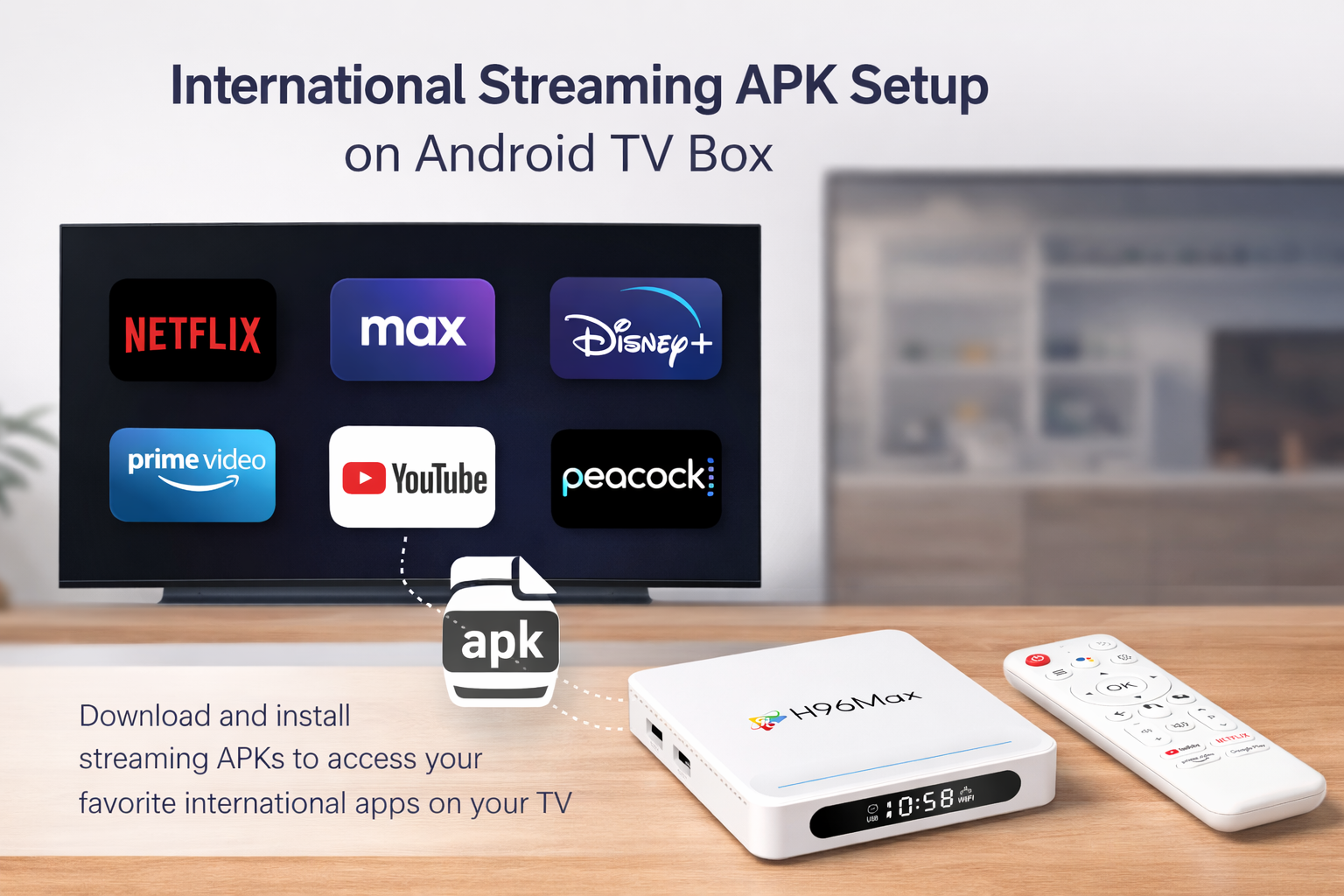
Step-by-Step Guide to Installing Mainstream International APKs on Android TV Box
Installing APK on Android TV box is an essential skill for users who want to access a broader range of applications, including those not available on the official app store. This comprehensive guide provides an expert walkthrough, from preparation to troubleshooting, ensuring a seamless experience when you install APK on Android TV box. Whether your aim is to enable IPTV, access streaming services, or enhance your Android TV experience, following the right method matters.
Understanding APK and Android TV Box Compatibility
Before proceeding, it's crucial to understand what APK files are and why compatibility matters. APK stands for Android Package Kit, the file format used for installing apps on Android devices. When you install APK on Android TV box, you're manually adding apps that may not be available in the Google Play Store. To ensure smooth operation, verify the compatibility of your APK file with your Android TV box's hardware and Android OS version.
Preparing Your Android TV Box
Preparation is key to successful installation. Make sure your Android TV box is updated to the latest firmware. Navigate to Settings > Device Preferences > About to check for system updates. If updates are available, install them before proceeding. Next, enable installations from unknown sources: go to Settings > Security & Restrictions, and toggle on the Unknown Sources option for the file manager or browser you'll use.
Obtaining the Desired APK
For a professional approach, always download APKs from official developer websites or reputable sources. Avoid third-party APK hosting sites that may pose security risks. Use your Android TV box browser or a trusted PC to download the APK and transfer it to your device via USB or cloud storage.
Step by Step: Install APK on Android TV Box
This section covers the detailed process to step by step install APK on Android TV box:
Open the file manager app on your Android TV box.
Navigate to the directory where your APK file is stored (USB drive, Downloads, or cloud storage folder).
Select the APK file. A prompt will appear asking if you want to install the app.
Confirm the installation and wait for the process to finish.
You may see a warning regarding unknown sources—this is normal when installing third-party apps on Android TV box. If prompted, review permissions before proceeding.
How to Install APK on Android TV Using a Smartphone
If transferring files via USB or cloud is inconvenient, you can use your smartphone to install APK on Android TV box. Several apps, such as "Send Files to TV" or Android's built-in sharing features, allow wireless transfer and installation. After sending the APK, follow the on-screen instructions to complete the process.
Android TV Box APK Installation for IPTV and Streaming
A common use case is to install APK on Android TV box for IPTV or accessing international streaming apps. When selecting an APK, ensure it is optimized for Android TV’s remote-friendly interface and screen resolution. Installation steps remain the same, but after installing, configure the app as required for IPTV or streaming content.
Android TV Box App Installation Guide: Best Practices
To maximize safety and app performance, adhere to these best practices:
Always scan APK files with a trusted antivirus before installation.
Regularly clear cache and data to maintain system speed.
Only install third-party apps on Android TV box from credible sources.
Troubleshooting Common Issues When You Install APK on Android TV Box
Occasionally, installations may fail or apps may not run as expected. Common issues and solutions include:
Parsing errors: Ensure the APK is compatible with your device and Android version.
App not visible: Use a launcher compatible with sideloaded apps.
Installation blocked: Revisit your security settings for unknown sources.
If you still encounter issues, consult online forums or the app developer's official support channels for guidance. Being methodical and cautious protects your device and data.
Conclusion: Professional Insights on Installing APKs
Learning to install APK on Android TV box empowers you to unlock the device’s full potential. This guide emphasized professionalism and safety—install APK on Android TV box only when necessary and from trustworthy sources. Whether your goal is to install APK on Android TV box for IPTV, streaming, or custom applications, careful preparation and proper technique make all the difference.
READ MORE
Does 4K HDR and Dolby Vision on Android TV Box Enhance Real Viewing Experience?
What Overseas Users Care Most About: Android TV Box Warranty and After-Sales Policy Analysis
Top Cost-Effective Android TV Boxes Under $100: Pro Review & Ranking
Real Overseas User Reviews on Android TV Boxes: Most Requested Improvements and Insights
7 Critical Mistakes to Avoid When Buying an Android TV Box Abroad
Quick Links

.png "Watch H96 Max Android TV Box reviews on our YouTube channel")

.png "Explore H96 Max product photos on Instagram")