.png "H96 Max Android TV Box video reviews and tutorials on YouTube")
.png "H96 Max Android TV Box photos and lifestyle shots on Instagram")



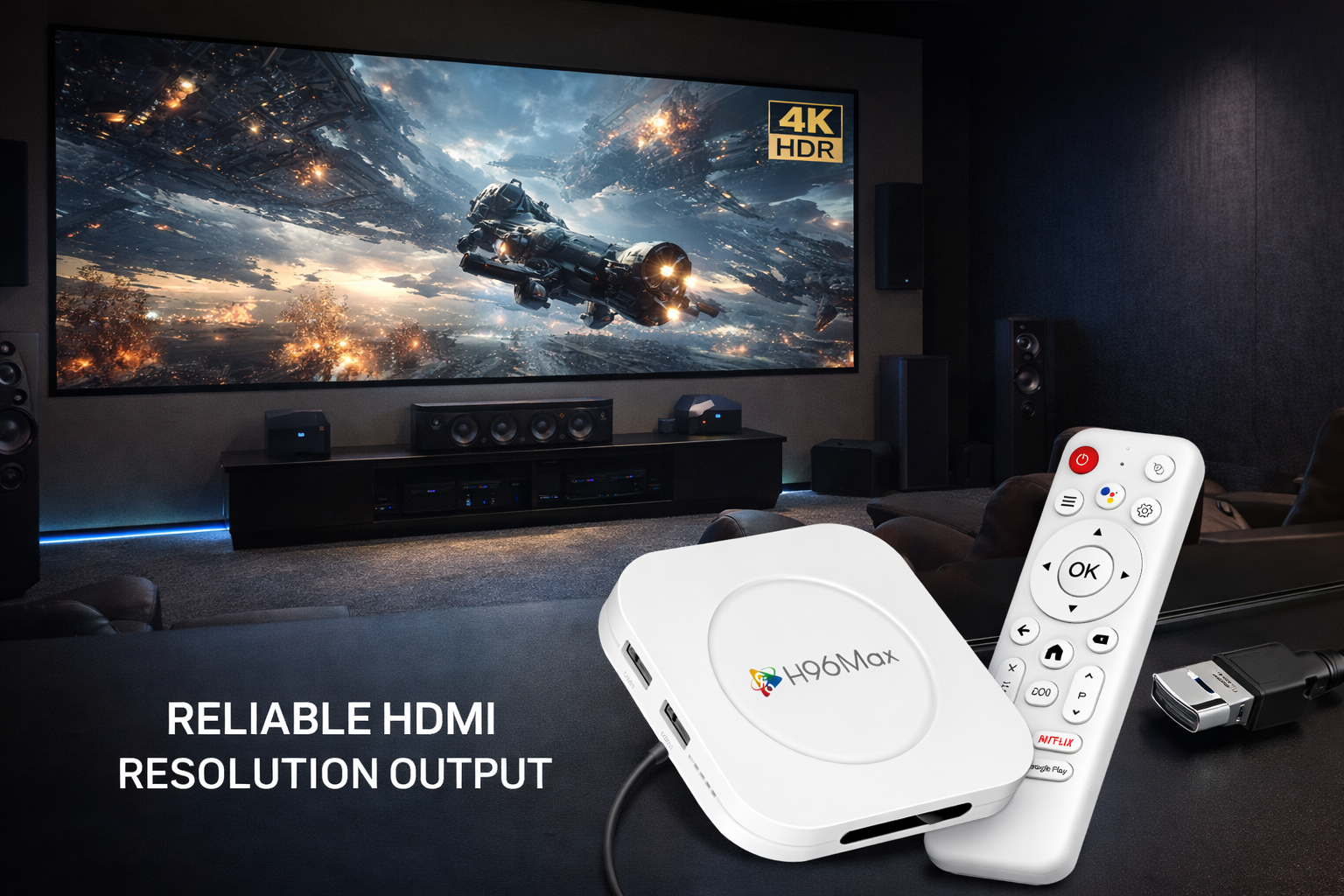
Mastering Home Theater Setup: HDMI, CEC, and Resolution Guide
A perfect Home Theater Setup with Android TV Box delivers an immersive audiovisual experience, but it requires a thorough understanding of modern technology and configuration. In this professional guide, we walk through each crucial step of HDMI connections, CEC setup, and resolution adjustment, ensuring your home theater not only functions but excels. Home Theater Setup with Android TV Box is the foundation of this process, empowering users with precise control and optimal settings. With advancements in smart TV technology and audio-video integration, mastering these elements is essential for anyone seeking to create a high-performance home theater environment.
Why Choose an Android TV Box for Home Theater?
The integration of an Android TV Box into your home theater system offers unparalleled flexibility and smart control. Android TV Box home theater configurations support a wide variety of streaming services, advanced upscaling, and customizable system preferences, all of which are essential for the modern home cinema enthusiast. Seamlessly managing HDMI settings for Android TV Box, users can access high-definition audio and video, while leveraging CEC setup on Android TV Box for centralized remote operations. This versatility makes Android TV Boxes the preferred choice for both entry-level and advanced setups.
Step 1: Setting Up HDMI Connections
HDMI remains the gold standard for high-definition multimedia connections in any home theater setup. Begin by connecting your Android TV Box to the AV receiver or directly to the TV using a premium HDMI cable. Proper HDMI settings for Android TV Box ensure that you achieve full compatibility with 4K, HDR, and Dolby Atmos standards. Always use certified cables that support your desired video and audio formats. For advanced configurations, consult your AV receiver’s manual for multi-channel passthrough and eARC support, which allows uncompressed audio signals for a superior sound experience. Double-check the number of HDMI ports available on your receiver or TV to maximize connectivity options for future upgrades.
Step 2: Understanding CEC and Device Control
Consumer Electronics Control (CEC) is an HDMI feature that enables you to control multiple devices with a single remote. For CEC setup on Android TV Box, access the system settings and enable HDMI-CEC or CEC options. This not only synchronizes power and input switching between your TV and connected devices but also reduces remote clutter and streamlines daily use. Refer to your TV and AV receiver manuals, as some manufacturers use proprietary names for CEC. Once activated, test basic commands such as power on/off, volume control, and source selection. The Android TV Box HDMI CEC settings guide helps ensure seamless integration, reducing setup friction for all users.
Step 3: Optimizing Resolution Settings
Resolution plays a central role in the clarity and detail of your viewing experience. Enter the Android TV Box resolution settings menu and select the highest resolution supported by both your TV and the TV box, typically 4K Ultra HD for modern systems. If your TV supports variable refresh rates (VRR) or automatic low latency mode (ALLM), enable these features for smoother playback, especially when gaming or watching high-action content. Adjust HDR settings according to your display’s capabilities to maximize color depth and dynamic range. For older displays, select the native resolution to prevent upscaling artifacts.
Step 4: Advanced Display Customization
To achieve the Best display settings for Android TV Box, explore advanced options such as color space (RGB vs. YCbCr), chroma subsampling, and noise reduction. Proper calibration can eliminate banding, ensure accurate color representation, and minimize motion blur. Use test patterns or calibration discs for precise adjustments, or consult a professional calibrator for optimal results. Remember that settings may vary depending on your TV model and Android TV Box firmware version. Saving custom profiles allows for quick changes between movie, sports, and gaming modes.
Step 5: Audio Integration and Synchronization
A true home theater setup requires not just stunning visuals, but also immersive sound. Configure audio output on the Android TV Box to match your receiver’s capabilities: choose between PCM, Dolby Digital, or passthrough modes depending on your audio equipment. Sync audio delay settings to ensure that sound matches the on-screen action, which is especially important in multi-device setups. Experiment with speaker placement, calibration microphones, and room correction features for balanced acoustics. Advanced users can integrate external DACs or use eARC for lossless audio transfer.
Step 6: Troubleshooting and Maintenance
Even the most sophisticated setups can encounter issues such as signal dropouts, handshake errors, or compatibility problems. If your display shows no signal, verify cable integrity and re-seat connections. For CEC-related problems, restart devices in sequence and ensure that all firmware is up to date. Use the how to set up home theater with Android TV Box troubleshooting checklist to quickly identify and resolve configuration conflicts. Keep your Android TV Box and all AV components updated with the latest software for maximum reliability and new features.
Step 7: Achieving Professional-Grade Performance
To elevate your home theater experience, consider advanced techniques such as ISF calibration, ambient light control, and custom automation with smart home systems. Integrate streaming services and local media servers for seamless access to content. Regularly revisit the Best display settings for Android TV Box as new firmware updates and display technologies emerge. Network optimization, including wired Ethernet connections and QoS settings, further enhances streaming stability. Document your configuration with photos and backup settings for future reference and easy restoration.
Conclusion
A well-executed Home Theater Setup with Android TV Box leverages the full potential of modern audio and video technologies. By mastering HDMI, CEC, and resolution settings, users can enjoy a cinema-quality experience in their own home. This guide empowers both enthusiasts and professionals with actionable insights to maximize every aspect of the Android TV Box home theater journey. For further details and specific device recommendations, consult the manufacturer’s documentation or reach out to a professional installer.
READ MORE
Android TV Box Remote Recovery: 3 Fast Solutions for Not Working Issues
How to Quickly Install APKs to Android TV Box Using Your Phone
Comprehensive Guide to Resolving Android TV Box Error Messages
Android TV Box Voice Control Remote Setup: From Alexa, Google Assistant to Local Solutions
Android TV Box and TV Compatibility: Fine-Tuning Color, Output, and HDR
Top Setup Tips for the Best Android TV Box for Seniors and Kids
New User’s Essential Guide: Complete Android TV Box First-Time Installation Process
Quick Links

.png "Watch H96 Max Android TV Box reviews on our YouTube channel")

.png "Explore H96 Max product photos on Instagram")