.png "H96 Max Android TV Box video reviews and tutorials on YouTube")
.png "H96 Max Android TV Box photos and lifestyle shots on Instagram")



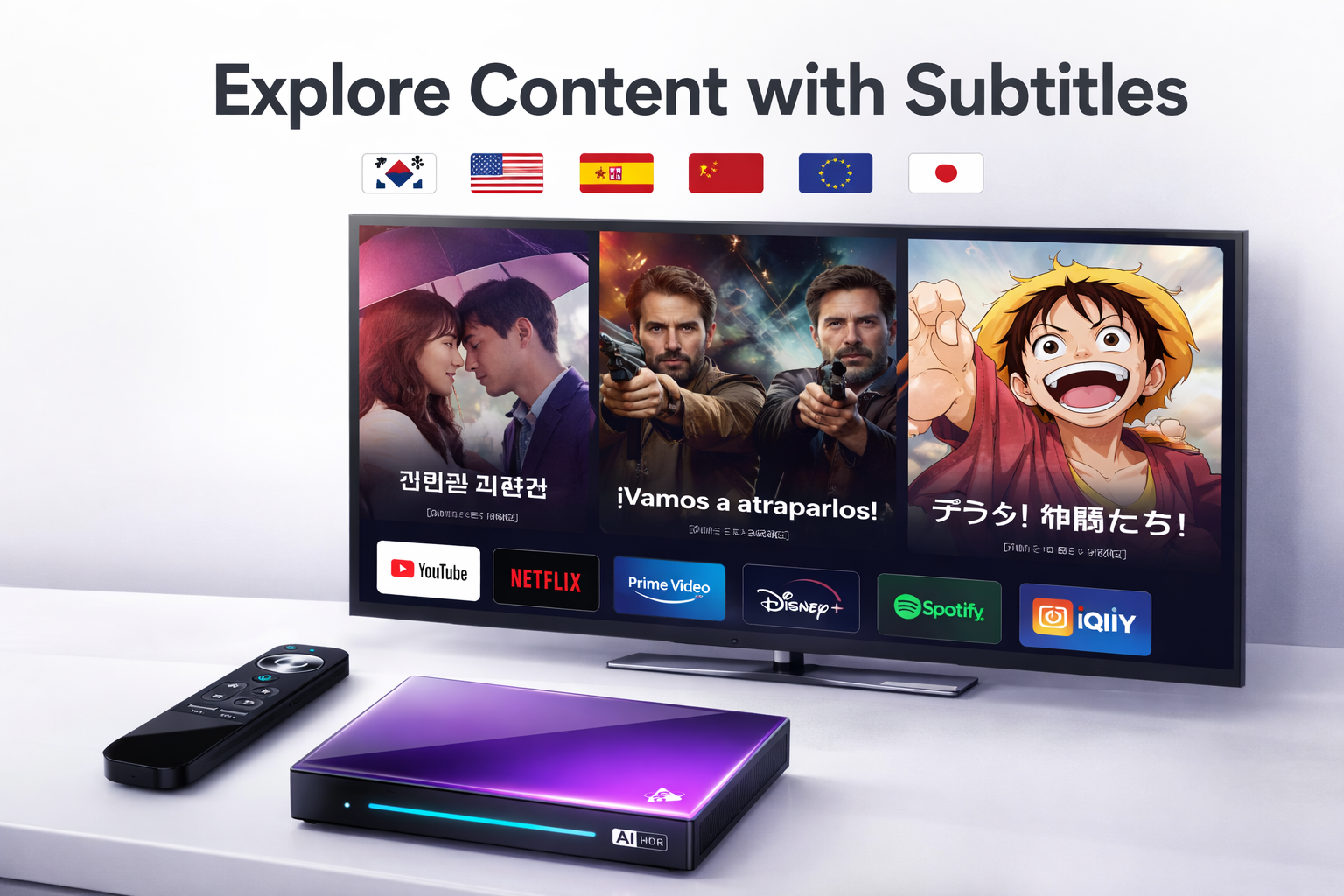
How to Run Foreign Subtitles on Android TV Box
Android TV Box Subtitle Support is a valuable feature for users who enjoy watching movies and TV shows in various languages. This article explores the different ways to enable subtitles and explains Android TV Box subtitle settings, allowing for a seamless viewing experience. If you're looking to play foreign subtitles on your Android TV Box, this guide provides you with all the necessary steps.
Android TV Box subtitle support offers several options for configuring subtitles, including different file types and settings. It can be quite simple to set up subtitles, but for those unfamiliar with the process, it can be a bit overwhelming. In this article, we will walk you through the process of setting up Android TV Box subtitle support, including how to run foreign subtitles and adjust settings according to your preferences.
Understanding Android TV Box Subtitle Settings
When setting up subtitles on an Android TV Box, the first thing to understand is the various subtitle file types that are compatible. Android TV Box subtitle file types include formats such as SRT, SSA, and ASS, each offering different features for enhancing the subtitle experience. SRT files are the most common, containing the basic time codes and subtitle text, while SSA and ASS offer more advanced formatting options, including styling and positioning of subtitles on the screen.
For users wanting to use foreign subtitles, it's important to ensure that the Android TV Box supports the appropriate file types. Most modern Android TV Boxes support SRT files, and many also support advanced subtitle formats like SSA and ASS. To use these subtitle file types, users need to download the subtitles in the correct format and store them in a directory where the Android TV Box can access them.
Setting Up Subtitles for Video Playback
Android TV Box video playback with subtitles is quite simple once the subtitle file is set up correctly. The Android TV Box will automatically detect subtitle files that match the video file name. For example, if you have a movie file named 'Movie.mp4' and a subtitle file named 'Movie.srt' in the same folder, the Android TV Box will automatically load the subtitle file when you play the video.
If the subtitles do not appear automatically, you may need to go into the settings and enable subtitles. Most Android TV Boxes have an option to turn subtitles on and off during playback. Additionally, some Android TV Boxes allow users to customize subtitle settings, such as font size, color, and position on the screen. These settings can be accessed through the media player or system settings.
How to Use Android TV Box Subtitle Settings to Play Foreign Subtitles
Using foreign subtitles on an Android TV Box requires a few extra steps. First, you will need to obtain the foreign subtitles in the correct file format. You can find subtitles for various languages on many online platforms. Once you download the subtitle files, ensure that they are properly synced with the video file.
To add the foreign subtitles to your Android TV Box, place them in the same folder as the video file. If you're using a media player like VLC or MX Player, these apps will automatically detect and display the subtitles. For other media players, you may need to manually select the subtitle file during playback.
Advanced Settings for Android TV Box Subtitle Support
In addition to basic subtitle file management, Android TV Box subtitle settings allow for advanced customization. For example, users can adjust subtitle sync, font style, and text size. These settings can be accessed from the system's settings menu or from within the media player settings.
Another important feature of Android TV Box subtitle support is the ability to use subtitles in multiple languages simultaneously. This is especially useful for users learning new languages or those who want to watch content in a foreign language with dual subtitles. Android TV Boxes that support this feature allow you to load two subtitle files and toggle between them during playback.
Conclusion
In conclusion, Android TV Box subtitle support is an excellent feature for users who enjoy watching content in multiple languages. By understanding how to use Android TV Box subtitle file types and configuring subtitle settings correctly, users can enjoy seamless video playback with subtitles. Whether you're using Android TV Box subtitle settings to run foreign subtitles or to customize your subtitle preferences, the process is simple and highly customizable. Follow the steps outlined in this guide to get the most out of your Android TV Box subtitle experience.
READ MORE
Recommended Kodi Add-ons and Installation Methods for the International Android Box Market
How Android TV Box Supports Multilingual Systems and Remote Control Functionality?
Copyright Challenges and Solutions for Android TV Box Users Worldwide
Android TV Box Streaming App Compatibility Across Different Countries
Why Android TV Box Faces Geo-Restrictions and How to Bypass Them with DNS and VPN Settings
Quick Links

.png "Watch H96 Max Android TV Box reviews on our YouTube channel")

.png "Explore H96 Max product photos on Instagram")