.png "H96 Max Android TV Box video reviews and tutorials on YouTube")
.png "H96 Max Android TV Box photos and lifestyle shots on Instagram")



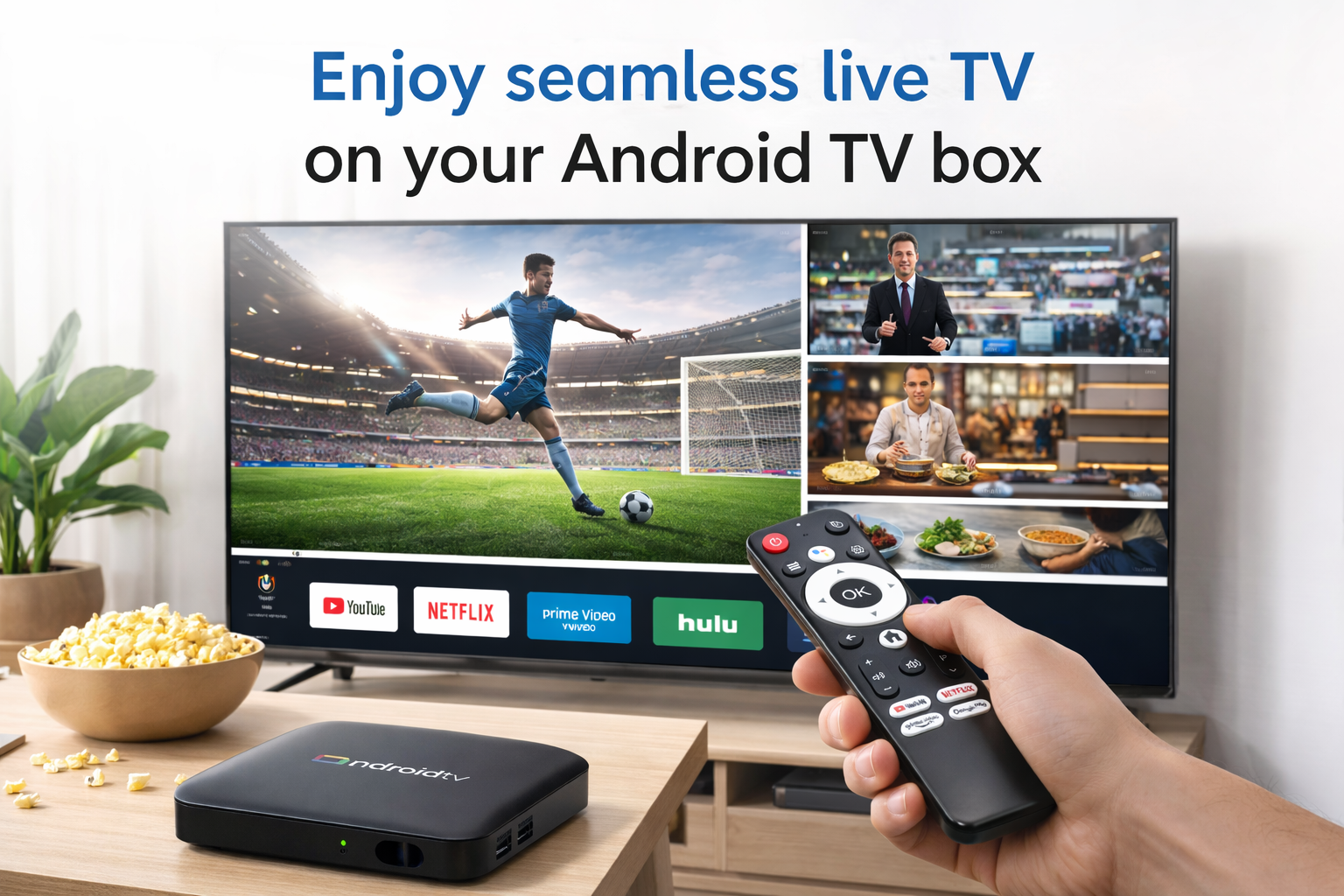
How to Set Up Live TV Streaming on an Android Box
Live TV streaming on Android box is an essential feature for many users who prefer to watch television on their smart devices. This guide will explain everything you need to know about Live TV streaming on Android box, including how to set it up, the benefits of using an Android box, and various methods for accessing live television. Whether you are using an Android TV box or a standard Android box, this guide will help you stream live TV seamlessly.
What Is Live TV Streaming on Android Box?
Live TV streaming on Android box allows you to access television broadcasts through the internet, rather than relying on traditional cable or satellite services. By using apps or software on your Android box, you can watch live television channels, movies, and even sports events directly on your TV screen. With an Android TV box, you can easily transform your regular TV into a smart TV capable of streaming live broadcasts.
One of the key advantages of using Android box live TV is the ability to watch TV channels from around the world. This gives you a broader range of content compared to conventional cable services, which might be limited to local channels. Moreover, you can choose from a variety of apps and services that offer live TV on Android box, including free and subscription-based options.
How to Set Up Live TV on Android Box?
Setting up live TV streaming on an Android box is relatively simple, and it involves just a few steps. Below is a detailed guide on how to get started:
Step 1: Choose a Live TV Streaming App
The first step in setting up Live TV on Android box is selecting an appropriate app. Some popular apps for streaming live TV include IPTV services, YouTube TV, Hulu, and Sling TV. You can easily download these apps from the Google Play Store or sideload APK files from trusted sources. Ensure that the app supports live TV broadcasts and provides access to the channels you wish to watch.
Step 2: Install the App
Once you've selected a streaming app, install it on your Android TV box. This can be done either through the Google Play Store or by manually downloading and installing APK files. If you are using an Android TV box, you can also use the built-in app store to browse and install various streaming services.
Step 3: Configure the App for Live TV Streaming
After installation, open the app and follow the on-screen instructions to set it up. Many apps require you to sign in with your account credentials, especially for subscription-based services. Once logged in, you can start configuring the settings to stream live TV channels.
Step 4: Enjoy Live TV on Android Box
Once you have set up the app, you can now enjoy live TV streaming on Android box. Browse through the channel guide, select your favorite shows or events, and start watching them in real-time.
Alternative Methods for Watching Live TV on Android Box
Aside from using apps, there are other methods to access live TV on Android box. For instance, you can use IPTV services, which offer access to a variety of TV channels over the internet. IPTV services can be installed on your Android box using third-party apps that are available on the Google Play Store or from external sources.
Another option is to use a web browser on your Android box to stream live TV directly from websites that offer live broadcasts. Many sports events, news channels, and other live shows can be streamed for free via web-based platforms.
How to Stream Live TV Channels on Android TV Box
If you're wondering how to stream live TV channels on Android TV box, there are several popular services available. Many users turn to services like Sling TV, YouTube TV, and Hulu, which provide access to major broadcast networks and cable channels. These services typically require a subscription, but they offer a free trial period that allows you to explore their features before committing.
Conclusion
In conclusion, setting up Live TV streaming on Android box is easy and offers numerous benefits. With the right apps and services, you can enjoy live broadcasts from around the world directly on your TV. Whether you are using an Android TV box or a regular Android box, there are several methods to stream live TV and enhance your viewing experience. Start exploring today and enjoy endless entertainment with Android box TV broadcast setup.
READ MORE
Recommended Kodi Add-ons and Installation Methods for the International Android Box Market
How Android TV Box Supports Multilingual Systems and Remote Control Functionality?
Copyright Challenges and Solutions for Android TV Box Users Worldwide
Android TV Box Streaming App Compatibility Across Different Countries
Why Android TV Box Faces Geo-Restrictions and How to Bypass Them with DNS and VPN Settings
Quick Links

.png "Watch H96 Max Android TV Box reviews on our YouTube channel")

.png "Explore H96 Max product photos on Instagram")