.png "H96 Max Android TV Box video reviews and tutorials on YouTube")
.png "H96 Max Android TV Box photos and lifestyle shots on Instagram")



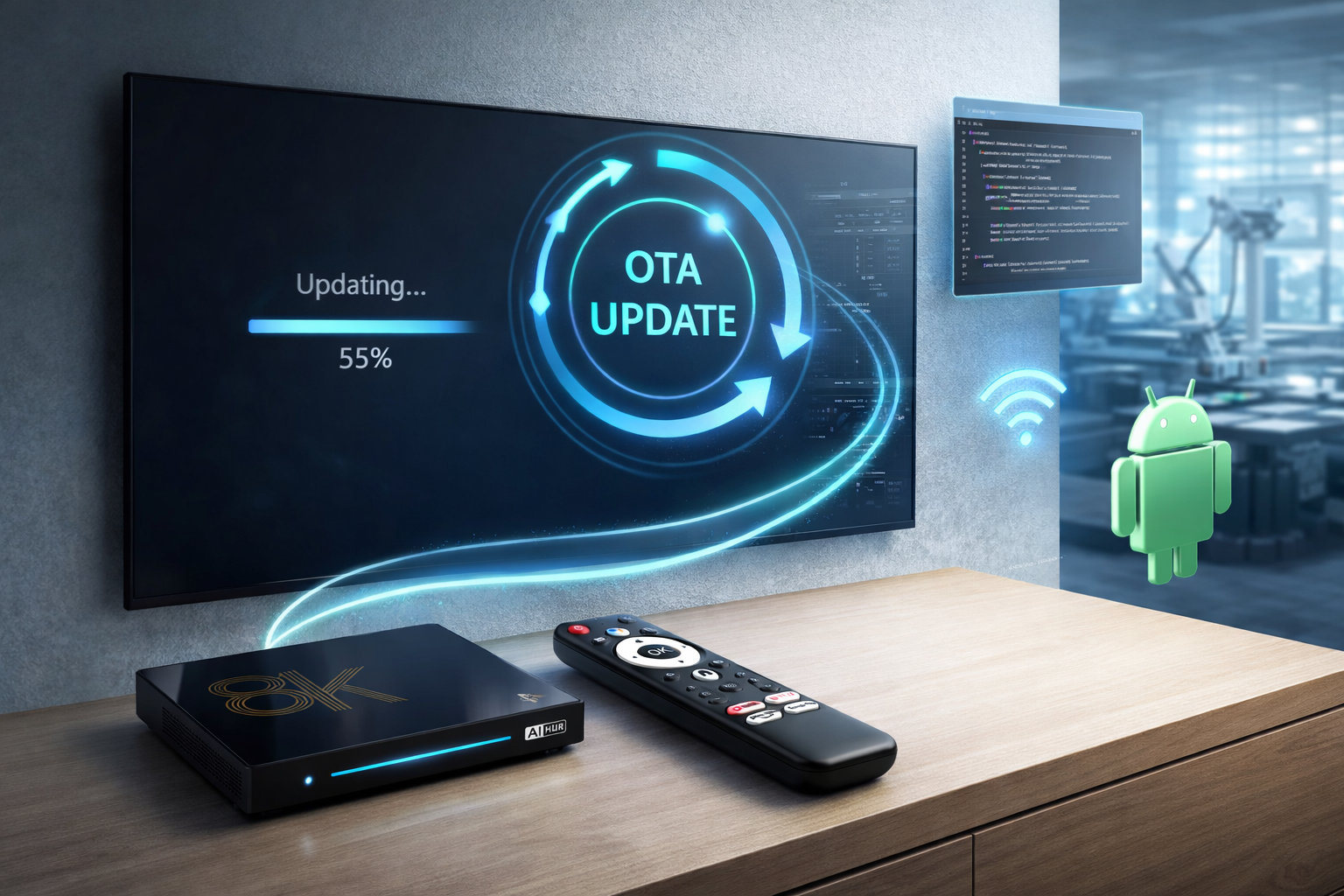
Comprehensive Guide: Resolving Android TV Box OTA Update Failed Issues
Understanding the Android TV Box OTA Update Process
Common Causes of OTA Firmware Update Failures
Step-by-Step Troubleshooting for Android TV Box OTA Update Failed
When faced with an OTA Firmware Update Failed or Android TV OTA Upgrade Issue, follow this professional troubleshooting framework:
Check Network Stability: Ensure your TV box is connected to a stable, high-speed network. Wired Ethernet is often more reliable than Wi-Fi for OTA updates.
Free Up Device Storage: Make sure your device has at least 1GB of free internal storage before attempting any update. Remove unnecessary files or apps.
Verify Firmware Compatibility: Use only official firmware recommended for your specific Android TV Box model. Installing incompatible firmware can lead to bricking or repeated failures.
Restart and Retry: After encountering an update failure, restart your device to clear temporary glitches, then attempt the update process again.
Download Update Manually: If the automatic update fails, download the latest firmware from the manufacturer's official support page and install via USB if supported.
Factory Reset (If Necessary): As a last resort, performing a factory reset can resolve persistent Android TV Box OTA Update Problem by clearing system errors. Backup your data first.
By systematically following these steps, you can address most Android TV Box OTA Update Failed errors without compromising device functionality.
Expert-Level Tips for Preventing Future OTA Update Not Working Android TV Problems
For ongoing reliability, consider these advanced best practices:
Maintain Regular Backups: Regularly back up system and app data to avoid loss during unforeseen update issues.
Monitor Vendor Announcements: Stay updated on firmware releases and known bugs via official manufacturer channels or technical forums.
Test Updates on Spare Units: For integrators or businesses, test major updates on spare units before full deployment to clients.
Update in Controlled Environments: Avoid performing updates over public or unstable networks, and ensure a consistent power supply during updates.
Seek Professional Support: If unresolved, consult with vendor support for logs and advanced recovery options.
Implementing these recommendations significantly reduces future incidents of OTA Update Not Working Android TV and improves the long-term stability of your Android TV Box fleet.
Addressing Stuck Updates and Advanced OTA Firmware Update Failed Scenarios
Sometimes, users encounter a scenario where the Android TV Box OTA update stuck message appears, and the update does not proceed. Here’s how to resolve it:
Soft Reset: Unplug the TV box from power for at least 30 seconds and restart. This clears memory cache and can help resume the update.
Clear Cache Partition: Use the device’s recovery mode to clear the cache partition, which can resolve software conflicts causing update freezes.
Manual Firmware Flash: Download the correct firmware package and flash it using the device’s bootloader/recovery tools, following official procedures.
Seek Community Solutions: Experienced users and developers often share device-specific solutions for persistent update issues on tech forums.
If the above methods fail, professional servicing may be required. For enterprises or managed deployments, maintaining a fleet management protocol is highly recommended.
Frequently Asked Questions: How to Fix Android TV Box OTA Update Failed?
A: Most often, these failures are caused by unstable networks, insufficient storage, or incompatible firmware. Ensure each factor is addressed before reattempting an update.
Q: How to fix Android TV Box OTA update failed if updates keep looping?
A: Try performing a factory reset, ensure correct firmware, and manually install updates if needed.
Q: Can persistent OTA Firmware Update Failed be a hardware issue?
A: In rare cases, yes. If all software solutions are exhausted, contact your supplier or manufacturer for hardware diagnostics.
Q: What are the signs of a corrupted firmware download?
A: Symptoms include repeated update failures, device restarts, or the Android logo with an error sign. Redownload and verify the firmware package.
This professional troubleshooting guide is designed to provide lasting value for both end-users and system integrators managing Android TV Boxes.
READ MORE
Android TV Box Long-Term Overheating: Is Thermal Design Really That Important?
Why Do Apps Close Automatically After Android TV Box Reboot? System Memory Management Explained
Decoding Support Differences Unveiled: Which TV Boxes Truly Support 4K HEVC?
What Really Drives Android TV Box Performance? Not Just Specs—It’s These Settings!
Why Do Some Android TV Boxes Lag? Expert Insights Into Hardware Differences
Quick Links

.png "Watch H96 Max Android TV Box reviews on our YouTube channel")

.png "Explore H96 Max product photos on Instagram")