.png "H96 Max Android TV Box video reviews and tutorials on YouTube")
.png "H96 Max Android TV Box photos and lifestyle shots on Instagram")



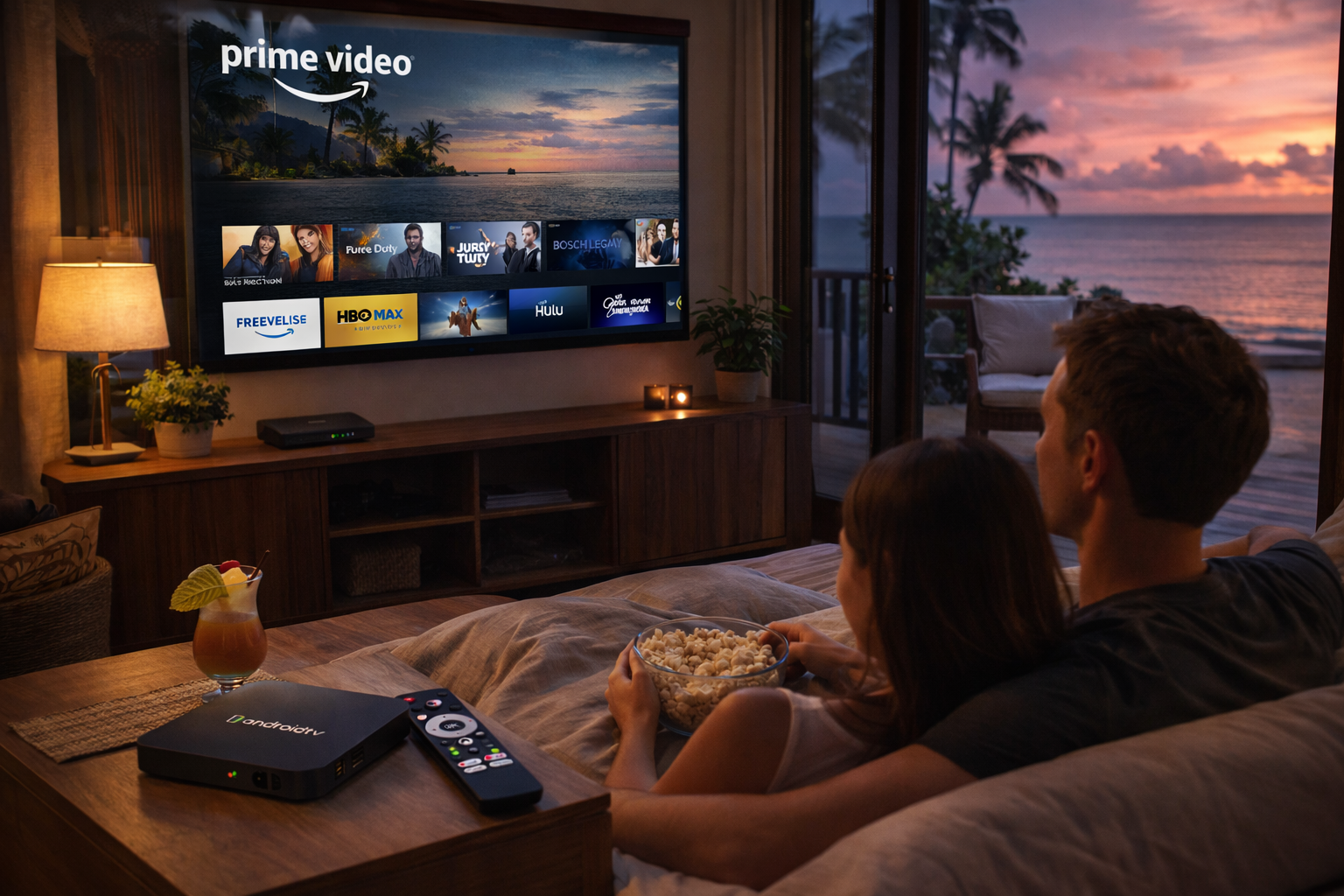
Unlocking Seamless Overseas Streaming on Android TV Box
Streaming international content such as Netflix, Prime Video, and Disney+ on Android TV Boxes is increasingly popular, but many users encounter annoying buffering, geo-restrictions, or quality drops. Effective Android TV Box Streaming Optimization can turn a frustrating experience into seamless binge-watching, no matter where you are.
Understanding Streaming Challenges Abroad
When using your Android TV Box overseas, you might face obstacles like slow servers, limited bandwidth, or incompatibility with streaming apps. These issues can significantly impact streaming quality on Android TV. Recognizing the specific challenges—such as content blackouts, ISP throttling, or latency from long-distance routing—helps you target the right optimization strategies and avoid disappointment in your viewing experience.
Additionally, copyright restrictions and licensing can block content or reduce resolution, even if you have a valid subscription. It’s essential to prepare your device and environment so your Android TV Box can deliver premium streaming quality regardless of your location.
Choosing the Right Android TV Box for Global Use
Performance varies widely among Android TV Boxes. For optimal results, select a model certified by Google, supporting Widevine L1 DRM. This ensures high-definition playback on services like Netflix and Prime Video. Advanced devices offer superior Android TV Box performance, with more RAM and robust processors, improving streaming and app-switching speed. Features like dual-band WiFi, gigabit Ethernet, and dedicated GPU can further elevate your streaming experience.
Before purchase, review community recommendations and technical benchmarks for devices compatible with global streaming services. Avoiding cheap, uncertified TV boxes reduces the risk of security vulnerabilities and supports reliable access to premium apps and updates.
Network Setup: The Foundation of Streaming Optimization
Reliable, high-speed internet is the backbone of streaming optimization. Connect your Android TV Box via Ethernet instead of WiFi to reduce lag. Use a VPN optimized for streaming to bypass regional restrictions and secure faster connections. DNS adjustment tools, sometimes built into Android TV, further reduce buffering and speed up content delivery. Network speed testing apps let you verify real-time performance and troubleshoot problems before streaming.
For shared networks, use Quality of Service (QoS) settings in your router to prioritize your Android TV Box traffic. Consistent speeds over 25 Mbps are recommended for 4K streaming; lower speeds may cause unwanted buffering and dropouts. If WiFi is unavoidable, position your box and router for minimal interference and maximum signal strength.
App Settings and Regular Updates
Keeping your apps and firmware up to date is crucial. Many streaming services like Disney+ and Prime Video frequently update security protocols. Outdated apps may stop working or lower your resolution. Android TV Box Streaming Optimization depends on staying current: check for updates regularly and clear app caches to free up system resources. Some TV boxes allow scheduled or automated updates—use these settings to avoid manual maintenance.
Besides app updates, operating system upgrades can address hidden bugs or improve compatibility with new streaming technologies. For persistent performance drops, consider a factory reset and start with a fresh installation of essential apps.
Customizing Streaming for Each Service
Netflix: Use Android TV Boxes with certified firmware and Widevine L1. Adjust Netflix app settings for data usage to match your bandwidth, and enable "High" or "Auto" video quality for the best possible resolution. For geo-unblocking, choose VPN servers located in the country with your Netflix library, and avoid using browser-based versions, which may restrict quality.
Prime Video: Make sure your device is recognized as compatible. Sideloading the official app and logging in through secure connections can improve playback and unlock HD or 4K streams. If audio/video sync issues occur, clear cache and relaunch the app, or restart the device. Use customer support if compatibility issues persist, as Amazon periodically updates its app policies.
Disney+: Select servers closer to your real location via VPN for reduced lag. Change playback resolution in app settings for smoother performance. If you see frequent buffering or errors, double-check your Android TV Box firmware and reinstall the Disney+ app for better compatibility.
Advanced Performance Tips
Close background apps before streaming to maximize available memory. Use external cooling solutions if the device overheats—prolonged high temperatures can throttle CPU performance and cause app crashes. Regularly reboot your Android TV Box to clear temporary files, especially before starting a long movie or TV marathon.
If your Android TV Box supports it, tweak advanced developer options like hardware acceleration, background process limits, and network usage settings. This level of Android TV Box Streaming Optimization is especially useful for tech-savvy users and demanding environments, such as shared apartments or noisy WiFi networks.
Enhancing the Experience with Accessories
Invest in quality remote controls, air mice, or gamepads for smoother navigation and app control. Consider external storage for buffering large files or storing offline content. Audio systems and soundbars can dramatically boost your cinema experience, especially if your TV box supports Dolby or DTS audio formats.
Mounting your Android TV Box behind the TV or in a well-ventilated area helps reduce visible clutter and keeps the device cool. Label cables for easier troubleshooting if your setup is complex or shared among several users.
User Profiles and Parental Controls
Set up multiple user profiles to keep recommendations and watch histories separate, especially for families. Parental control features in Android TV and streaming apps help restrict access to mature content. Some third-party apps allow granular filtering by genre, rating, or viewing time—use them to customize your household’s streaming rules.
Troubleshooting Common Issues
Persistent buffering? Run a speed test and restart your modem/router. If apps freeze or crash, clear cache/data or reinstall. For VPN-related problems, switch servers or test with another provider. Some users find that a factory reset (after backing up data) restores original performance. Always consult community forums for device-specific advice.
Looking Ahead: The Future of Android TV Box Streaming Optimization
Streaming providers continually improve content delivery technology. Watch for updates on low-latency streaming, adaptive bitrate enhancements, and new DRM standards. As Android TV OS matures, more customization and security features will be released, making optimization easier for users worldwide.
By adopting these tips and leveraging the best Android TV Box Streaming Optimization practices, you’ll enjoy global content on Netflix, Prime, and Disney+ with minimal disruption—no matter where you call home.
READ MORE
Seamless Android TV Box Streaming Optimization for Global Platforms
Advanced Android TV Box Streaming Optimization for Worldwide Streaming
Expert Android TV Box Streaming Optimization for International Success
Ultimate Android TV Box Streaming Optimization for Global Viewing
Elite Android TV Box Streaming Optimization for International Platforms
Comprehensive Android TV Box Streaming Optimization for International Streaming
Professional Android TV Box Streaming Optimization for International Platforms
Effective Android TV Box Streaming Optimization for Global Services
Quick Links

.png "Watch H96 Max Android TV Box reviews on our YouTube channel")

.png "Explore H96 Max product photos on Instagram")